
Upgrade, Reuse, and Move Your Storage Faster
Storage upgrades are one of the most noticeable ways to improve an older laptop or desktop. A faster internal SSD can shorten boot times and app loading, while external enclosures and USB drives help move files, back up media, and reuse older disks.
This guide separates internal upgrades from portable storage accessories so you can choose the right tool for the job: an NVMe boot drive for speed, an HDD enclosure for old SATA drives, and compact USB storage for everyday transfer needs.
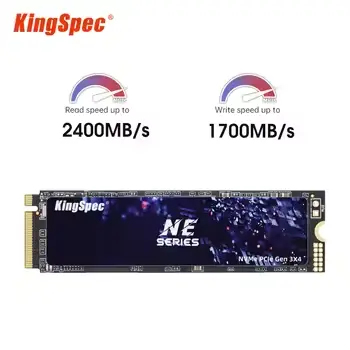
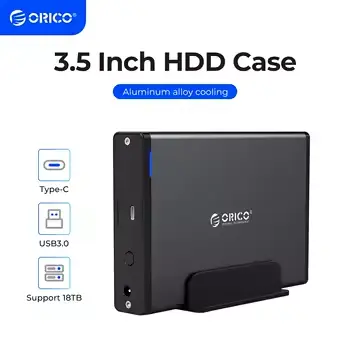
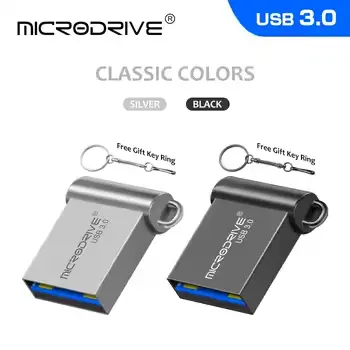
Current SSD and Storage Accessory Picks
The lineup covers four different storage needs: an M.2 NVMe SSD for internal speed, a USB enclosure for SATA hard drives, a compact USB 3.0 flash drive for daily transfers, and a high-capacity pen drive style option for large portable storage. Check compatibility carefully because internal SSDs, hard drive enclosures, and USB drives solve different problems.
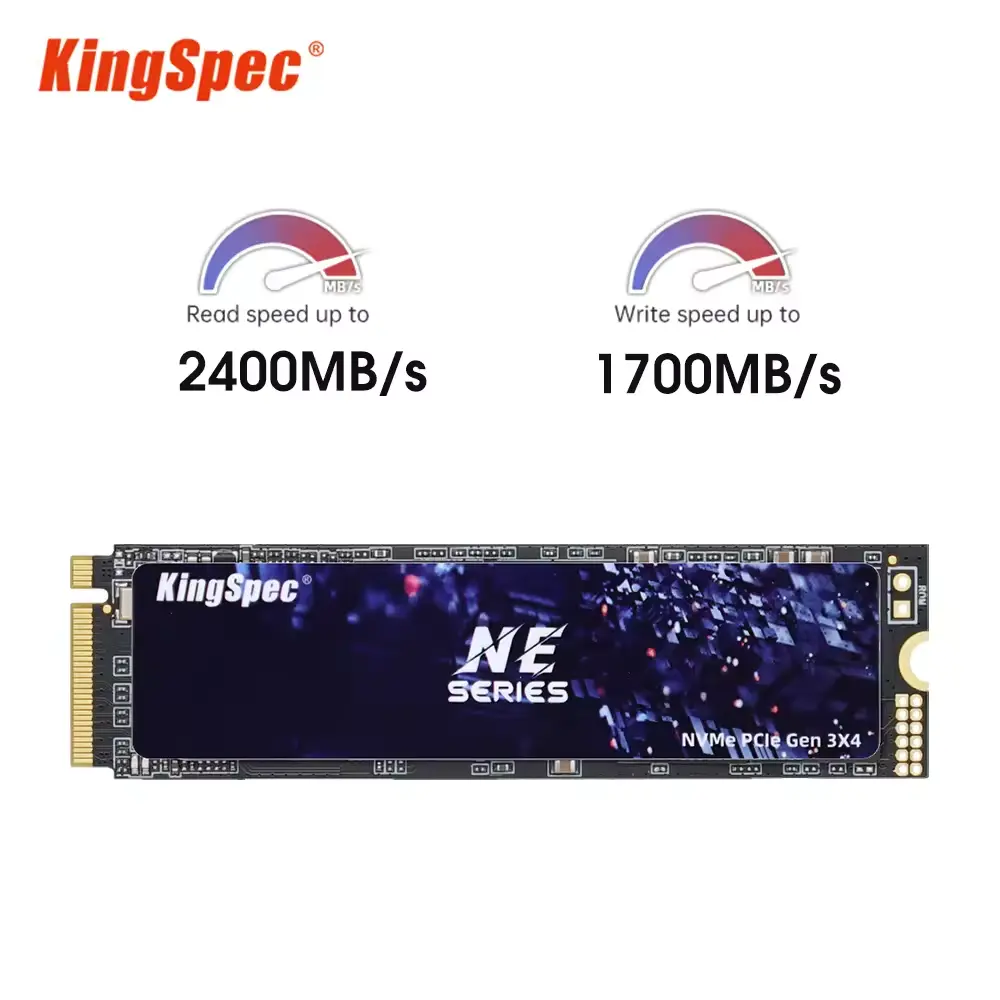
KingSpec M2 SSD NVMe 256GB 512GB 1TB 128GB M.2 NMVe 2280 PCI
Practical KingSpec M2 SSD NVMe 256GB 512GB 1TB 128GB M.2 NMVe 2280 PCI featuring durable construction and convenient design for everyday use.
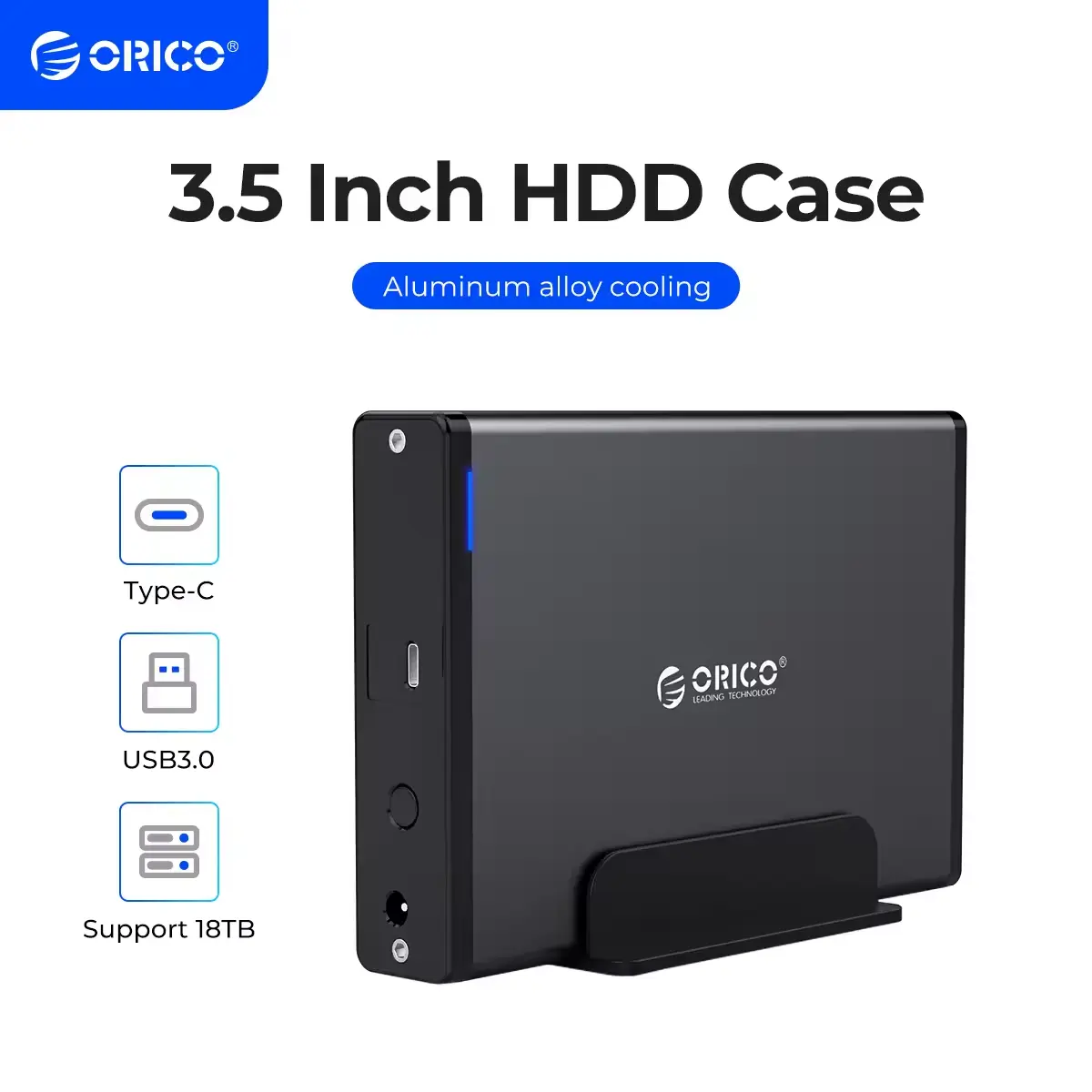
ORICO 3.5 inch HDD Case Type-C & USB3.0 Hard Drive Enclosur
Practical ORICO 3.5 inch HDD Case Type-C & USB3.0 Hard Drive Enclosur featuring durable construction and convenient design for everyday use.
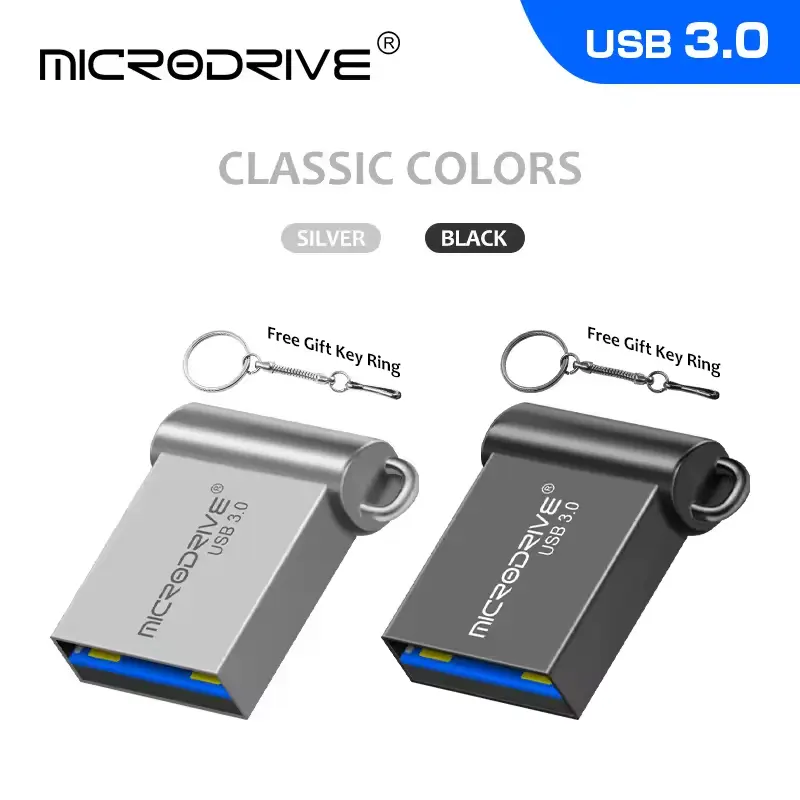
USB Flash Drive High Speed 3.0 Mini Flash Pendrive 128GB 64G
Practical USB Flash Drive High Speed 3.0 Mini Flash Pendrive 128GB 64G featuring durable construction and convenient design for everyday use.
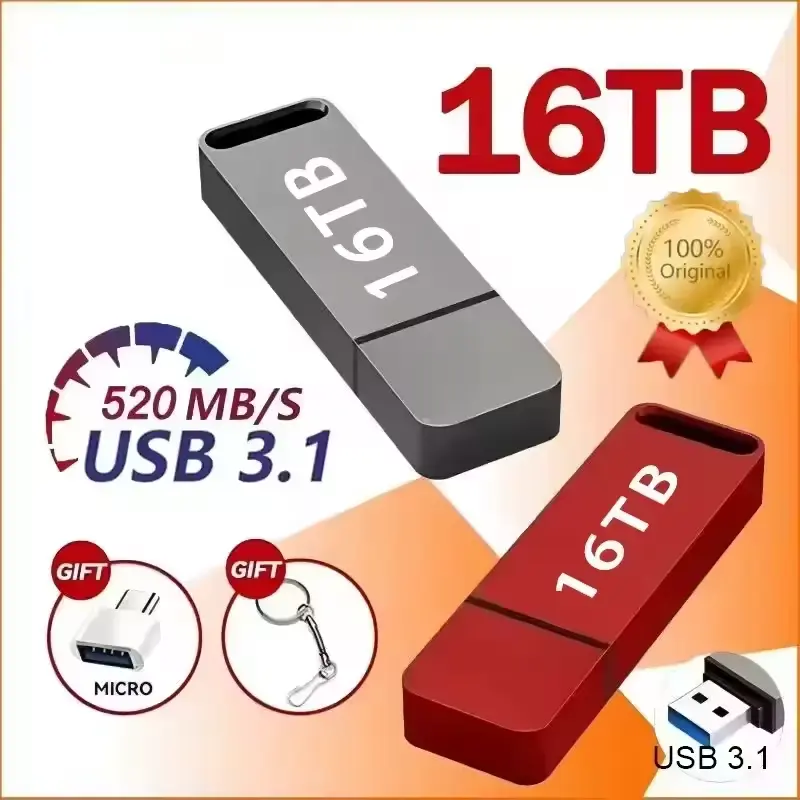
High-Speed 16TB Pen Drive
Massive capacity USB 3.0 pen drive for large-scale data storage and transfer.
Storage Upgrade Comparison
| Product | Best for | Connection type | Compatibility check |
|---|---|---|---|
| KingSpec M.2 NVMe PCIe 3.0 SSD | Internal boot drive and laptop speed upgrades | M.2 NVMe PCIe 3.0 | Device must support M.2 2280 NVMe, not only SATA M.2 |
| ORICO 3.5 inch HDD Enclosure USB 3.0 | Reusing desktop or laptop SATA drives externally | SATA to USB 3.0/Type-C | 3.5-inch drives usually require external power |
| High Speed USB 3.0 Flash Drive | Everyday file transfer and small backups | USB 3.0 | Capacity and connector type should match your devices |
| High-Speed 16TB Pen Drive | Large portable storage needs | USB 3.0 with Type-C adapter | Verify real usable capacity and format before relying on it for backups |
How to Choose the Right Storage Product
Start with the role of the storage device: speed inside the computer, recovery from an old drive, or portable transfer between devices.
Check internal slot compatibility first
For an M.2 SSD, confirm your laptop or motherboard supports NVMe PCIe drives in the listed length, commonly 2280. Some systems have M.2 slots that only support SATA, which are not interchangeable with NVMe drives.
Use an enclosure when you already own a SATA drive
A hard drive enclosure is useful when replacing an old drive, recovering data, or turning a spare HDD/SSD into external storage. For 3.5-inch desktop drives, make sure the enclosure includes the needed power supply.
Treat flash drives as transfer tools, not your only backup
USB flash drives are convenient for moving files, but important files should also exist in another backup location. Large-capacity claims should be tested before storing irreplaceable data.
Match speed to the task
NVMe SSDs are best for operating systems, apps, and active project files. USB drives and enclosures are better for copies, archives, installation media, and moving files between machines.
Frequently asked questions
Will an NVMe SSD work in any M.2 slot?
No. M.2 describes the physical slot shape, while NVMe describes the PCIe storage protocol. Check your system manual to confirm that the slot supports NVMe PCIe drives in the right length.
What is a hard drive enclosure used for?
An enclosure lets you connect an internal SATA HDD or SSD over USB. It is useful for backups, file recovery, cloning drives, or keeping an older drive useful after an upgrade.
Is USB 3.0 fast enough for backups?
USB 3.0 is fast enough for many document, photo, and media backups, especially compared with older USB 2.0 drives. Very large video projects or active editing workloads are better handled by faster SSD storage.
Should I trust very large pen drive capacity claims?
Always verify usable capacity with a test before relying on any high-capacity portable drive. For important files, keep at least one additional backup in a separate location.
What is the best upgrade for an old laptop?
If the laptop supports it, replacing a mechanical hard drive or old SATA SSD with a compatible SSD usually gives the biggest day-to-day improvement. If the laptop lacks an internal upgrade path, external storage can still help with backups and file management.
Can an enclosure run both 2.5-inch and 3.5-inch drives?
Some enclosures support both sizes, but 3.5-inch desktop drives typically need more power. Check the enclosure listing for supported drive size, SATA support, and whether an external power adapter is included.
How We Choose Products
Expert Reviews
We organize products by use case, specs, price signals, and buyer-fit clues from the feed.
Always Updated
Prices, images, and availability signals come from the current product feed when the page renders.